The new Metered dashboard
The Metered dashboard has been redesigned. Nothing changed underneath: your account, apps, TURN credentials, API keys, rooms, recordings and billing are the same, and the REST APIs and SDKs are unchanged. Only the layout, names and grouping of settings are new.
The classic dashboard stays available. You can use whichever you prefer and switch at any time.
Switching between dashboards
- New → classic: click Old dashboard in the header of any page on the new dashboard.
- Classic → new: open dashboard.metered.ca/v2.
How the docs handle both dashboards
Wherever a page shows dashboard screenshots or click-by-click steps, you'll find two tabs. Pick the one that matches what you're using — the docs remember your choice on every page.
- New dashboard
- Classic dashboard
You're reading the docs for the new dashboard. Screenshots and button names on tabbed pages match the redesigned interface.
You're reading the docs for the classic dashboard. Screenshots and button names on tabbed pages match the original interface.
Everything outside the tabs — API calls, code samples, concepts — applies to both.
What's new
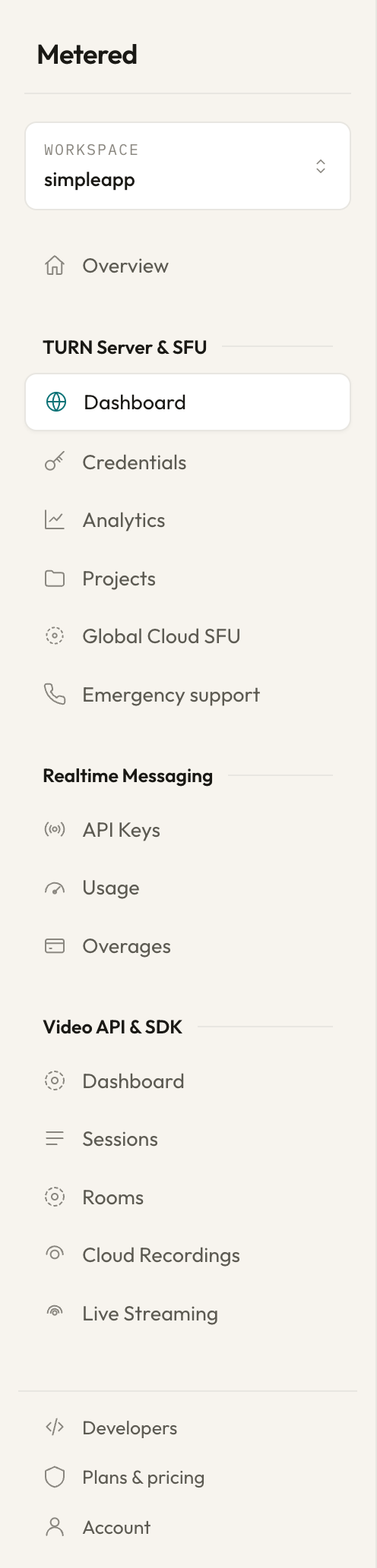
- One workspace per app. The workspace switcher at the top of the left navigation replaces the app dropdown.
- Navigation grouped by product: TURN Server & SFU, Realtime Messaging, Video API & SDK, then Developers, Plans & pricing and Account.
- TURN Server is now four pages — Dashboard, Credentials, Analytics (new: bandwidth by project and credential, plus top consumers) and Projects — grouped with Global Cloud SFU and Emergency support.
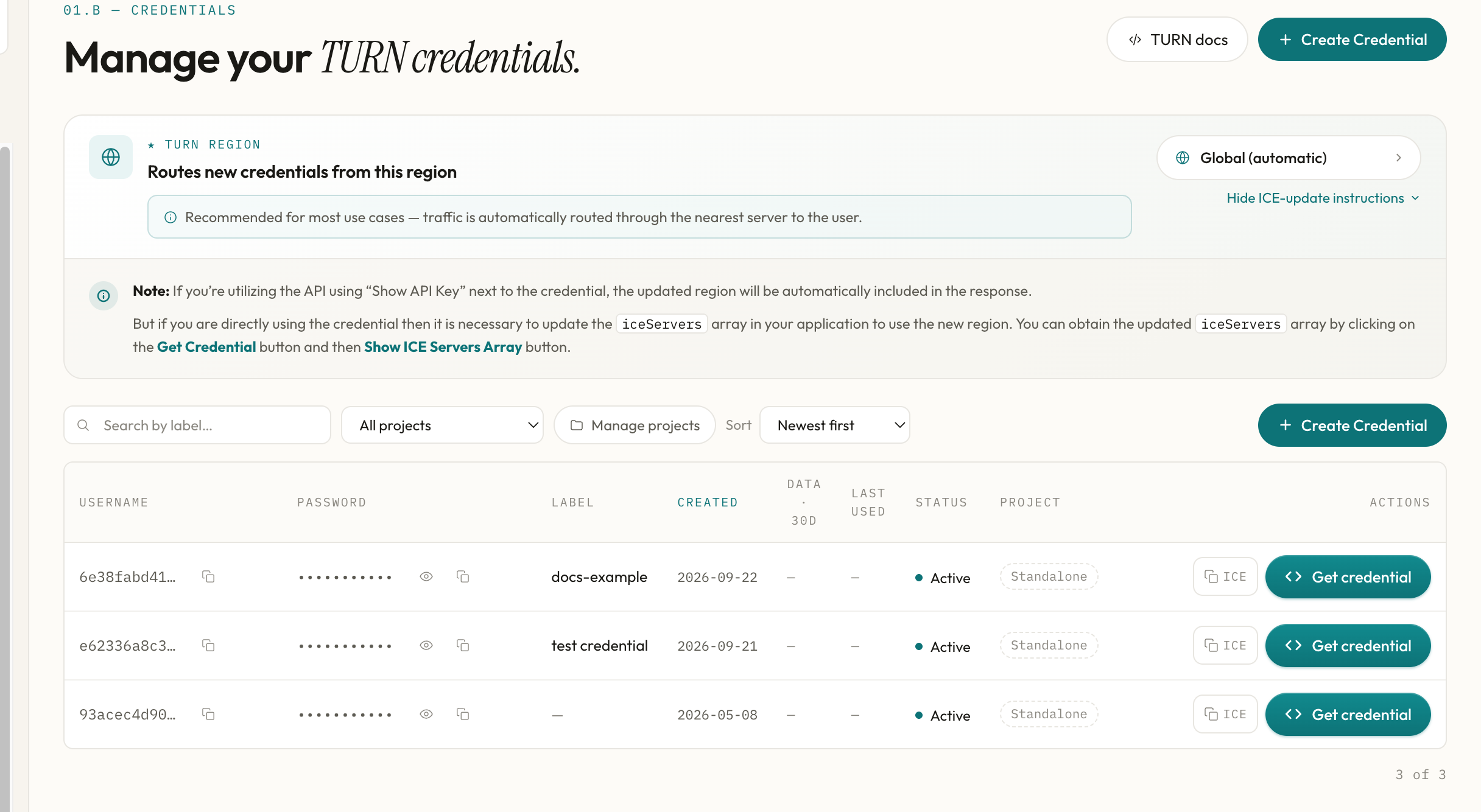
- Create Credential can pin a region and assign a project for that single credential.
- Passwords are hidden in the credentials table until you click the eye icon; the table also shows data relayed over 30 days, last use, status (including expired credentials) and project.
- Plans & pricing page: your current plans, what's bundled, and the full rate card in one place.
- Emergency support page for the phone-support PIN on paid TURN plans.
- A Top-up balance card with an Auto-reload toggle on the TURN dashboard, so you can see and fix a low balance without leaving the page.
The left navigation groups everything by product:
Where things moved
TURN Server
| Classic dashboard | New dashboard |
|---|---|
| TURN Server page → Add Credential | TURN Server → Credentials → Create Credential |
| "Click Here to Generate Your First Credential" | Create Credential |
| Show ICE Servers Array button on a credential | ICE (copies the ICE servers array), or Get credential → Show ICE Servers Array |
| Show API Key button on a credential | Get credential → Show API Key |
| Remove button on a credential | Get credential → Delete credential |
| Default TURN Server Region dropdown on the TURN Server page | TURN region on the Credentials page (the default region for every credential left on Workspace default); a per-credential region can also be set in Create Credential |
| Projects section on the TURN Server page → Create Project | TURN Server → Projects → New project |
| Manage TURN Credentials / Edit Project on a project card | Manage / Edit on the project card |
| Plan cards at the bottom of the TURN Server page | Plans & pricing, or Manage subscription on the TURN dashboard |
| Emergency Phone Support panel | Emergency support page |
| Usage numbers at the top of the TURN Server page | TURN Server → Dashboard (stats period 1H / 24H / 7D / 30D) and Analytics |
For example, TURN credentials now live on their own page, with the region setting and the credential table together:
Developers, billing and account
| Classic dashboard | New dashboard |
|---|---|
| Developers → secret key shown, Regenerate Secret Key | Developers → Reveal to show the secret key, Reissue it → to regenerate |
| Account → Automatic Billing | Account → Billing → Auto-reload (also on the TURN dashboard's Top-up balance card) |
| Account → Add Funds | Account → Billing → Add Funds (also Add funds on the TURN dashboard and Overview) |
| Account → Usage History / Payment History | Account → Billing → Usage History / Payment History |
| Account → Members | Account → Team |
| Account → Custom Branding | Account → Branding |
Realtime Messaging, Video API and SFU
| Classic dashboard | New dashboard |
|---|---|
| Realtime Messaging page with the tabs API Keys, Usage and Billing | Realtime Messaging group in the sidebar with API Keys, Usage and Overages (the classic Billing tab) |
| Rooms, Sessions, Cloud Recordings, Live streaming in the main navigation | The same pages under Video API & SDK |
| Create Room on the dashboard home | Video API & SDK → Rooms → Create room |
| Edit button next to a room, or Edit Room on the room summary | The room's ⋮ menu in the Rooms list → Edit (the same form as Create room) |
| Room settings Record Room, Enable RTMP OUT, Enable Watermark | Record individual streams, Push to external RTMP destination, Enable watermark overlay — grouped in the sections Recording & composition, Streaming output and Watermark |
| Room summary → HLS Live Stream URL and Embed Info | Room page → Live streaming (HLS/Dash) URL, Stream ID, and the Embed snippet card |
| Cloud Recordings → View → recording page | Cloud Recordings → Preview (a side panel with the preview and Download) |
| Global Cloud SFU → Add SFU App | TURN Server & SFU → Global Cloud SFU → Add SFU app; the SFU secret stays hidden until you click Reveal secret |
The Broadcaster composition layout is not in the new dashboard's Composition layout menu yet — if you use it, set it on the classic dashboard.
Frequently asked questions
Do I need to recreate anything? No. Credentials, keys, rooms, recordings, projects and balances are shared between both dashboards — they are two views of the same account.
Does the API change? No. Endpoints, parameters, secret keys and credential API keys are identical.
Will the classic dashboard be removed? It remains available for the foreseeable future. If that changes, we'll announce it well in advance and these docs will be updated.