Live Stream the Meeting
Live Stream the Meeting
In this article we will learn how to live stream any meeting to the world.
Key Concepts
Room: Represents a place where an audio/video meeting takes place. Each room has a unique URL and can have different settings like public or private etc.
Session: A meeting that happened in the room is the session. The session would contain the duration, the number of participants, etc. Each Room would have multiple sessions. and there would be only one session active at a time for each room.
Participant Session: When the user joins a meeting, a participant session is created for the user. The participant session would contain the participant's joinTime, leftTime, browser, os etc.
Composition Composition is using multiple video / audio streams to create a single video / audio stream. click here
Live Streaming requires composition. Composition will be automatically switched on when you switch on live streaming
You can enable live streaming through the dashboard
Enable Live Streaming through Dashboard.
Screenshots below show the new dashboard. If you use the classic dashboard, pick the Classic dashboard tab — your choice is remembered on every page. You can switch at any time: Old dashboard in the header takes you back to the classic dashboard, and dashboard.metered.ca/v2 opens the new one. What changed in the new dashboard →
- New dashboard
- Classic dashboard
-
Go to Video API & SDK → Rooms and click Create room, or
-
To change a room you already have, open its ⋮ menu in the Rooms list and click Edit (or open the room and click Edit). Changes apply from the room's next meeting session.
In the Streaming output section, switch on HLS / DASH live streaming. Then click Create room (or Update room if you are editing).
Composition will be turned on if this option is selected.
The layout of the live stream is set in the Composition layout menu, in the Recording & composition section of the same form:
- Natural grid: equal tiles for each participant
- Active speaker: shows the current speaker enlarged
The Broadcaster layout (only the owner / meeting admin shown large) is not in the new dashboard's menu yet. To use it, set the layout on the classic dashboard.
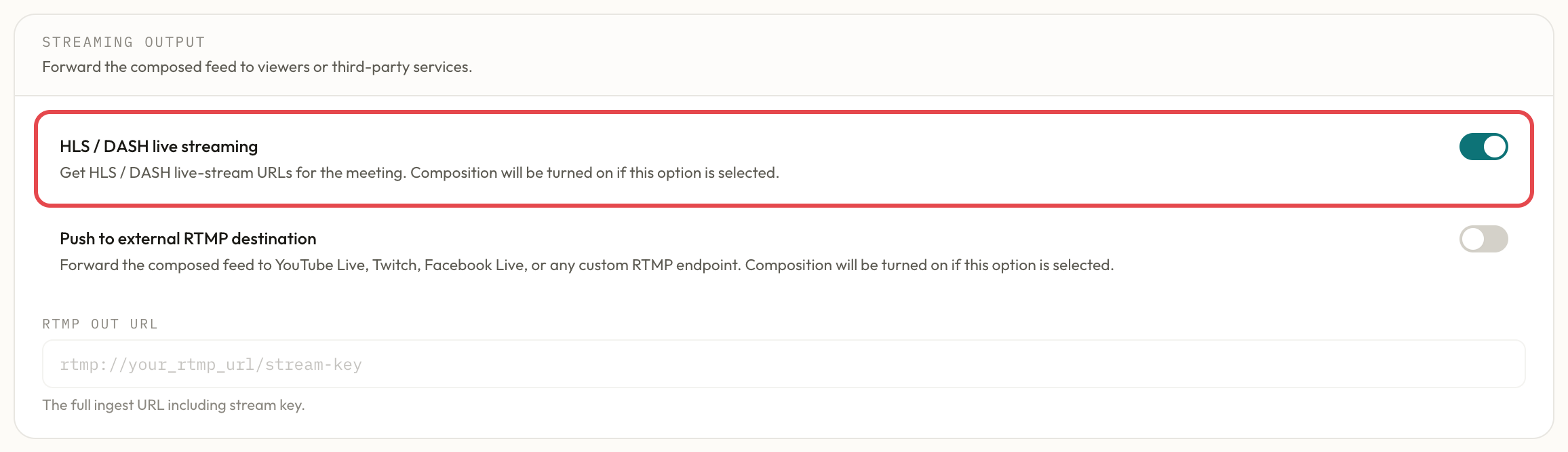 Enable Live Streaming in a room
-
You can go to dashboard then click on the
Create Roombutton or -
Click on the
Roomsbutton and click on the edit button next to the room on which you want to enable Live Streaming.
On the Rooms page you can see the HLS/Dash Live Streaming button enable it. Just above this option is the composition layout. You can select the layout of your live stream from the options available
- Grid: Natural grid layout
- Active Speaker: Show active speaker as enlarged
- Broadcaster: Only owner/ meeting admin will be shown as large
Composition will be turned on if this option is selected.
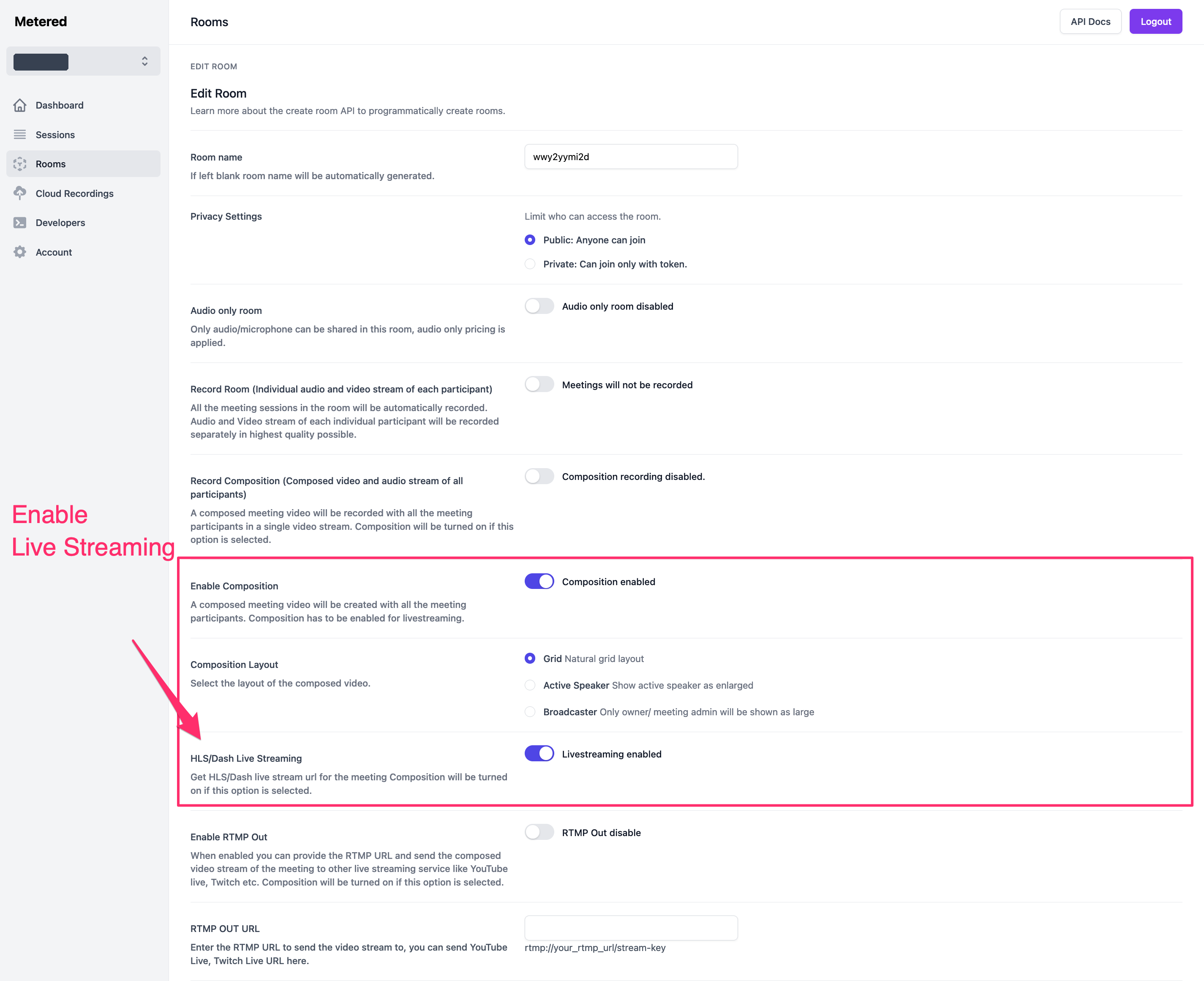 Enable Live Streaming in a room
Getting the Live Stream URl
- New dashboard
- Classic dashboard
Once you have enabled live streaming, open the room: go to Video API & SDK → Rooms, open the room's ⋮ menu and click View. In the Room summary, the Live streaming (HLS/Dash) row shows the HLS URL (ending in .m3u8) with a copy button, and the Stream ID row shows the stream's ID. You can put this URL in any third party streaming player to play the Live Stream.
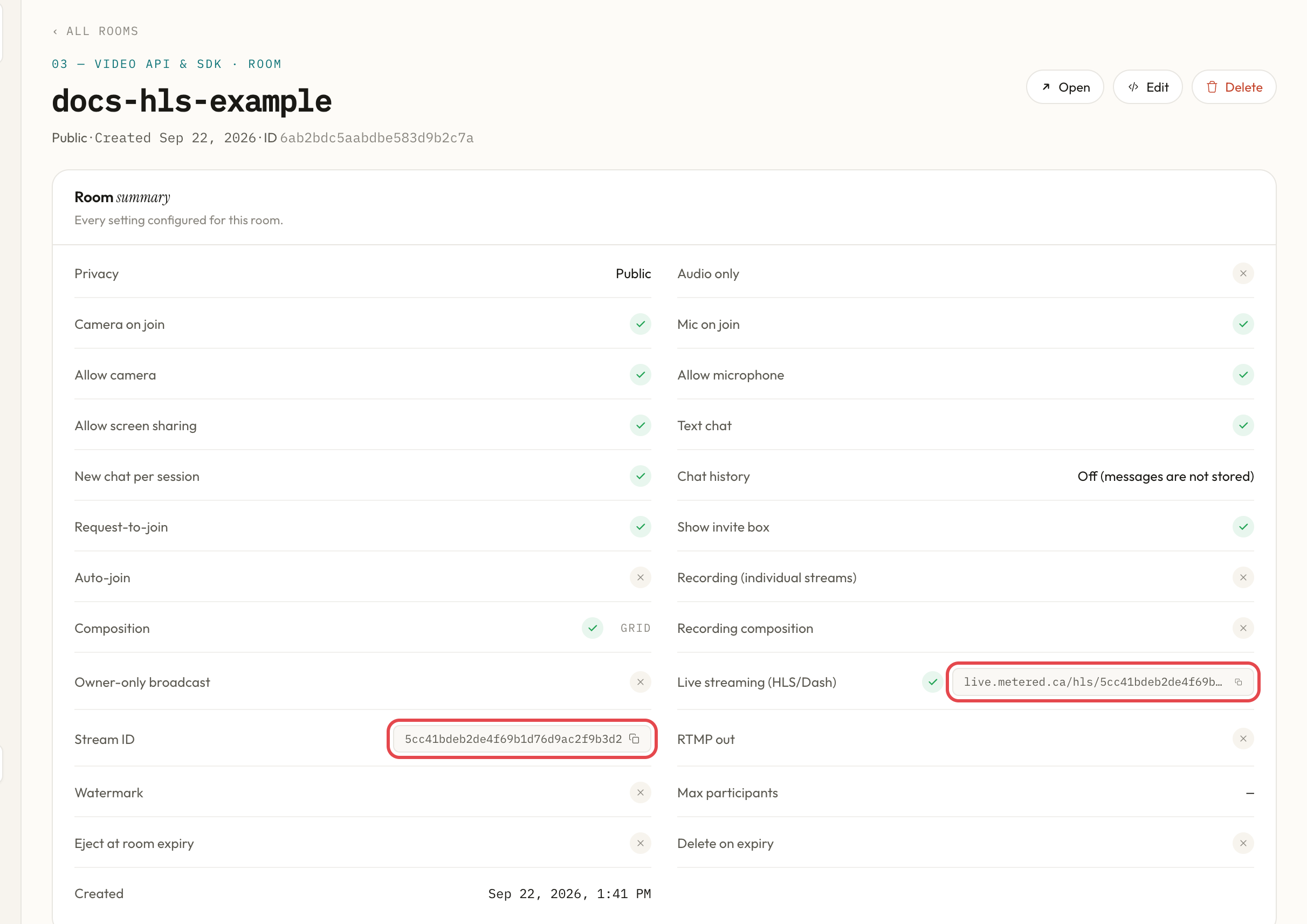
Once you have enabled the live streaming, go to the room page and there you can see the HLS Live Stream url. You can put this url in any third party streaming players to play the Live Stream
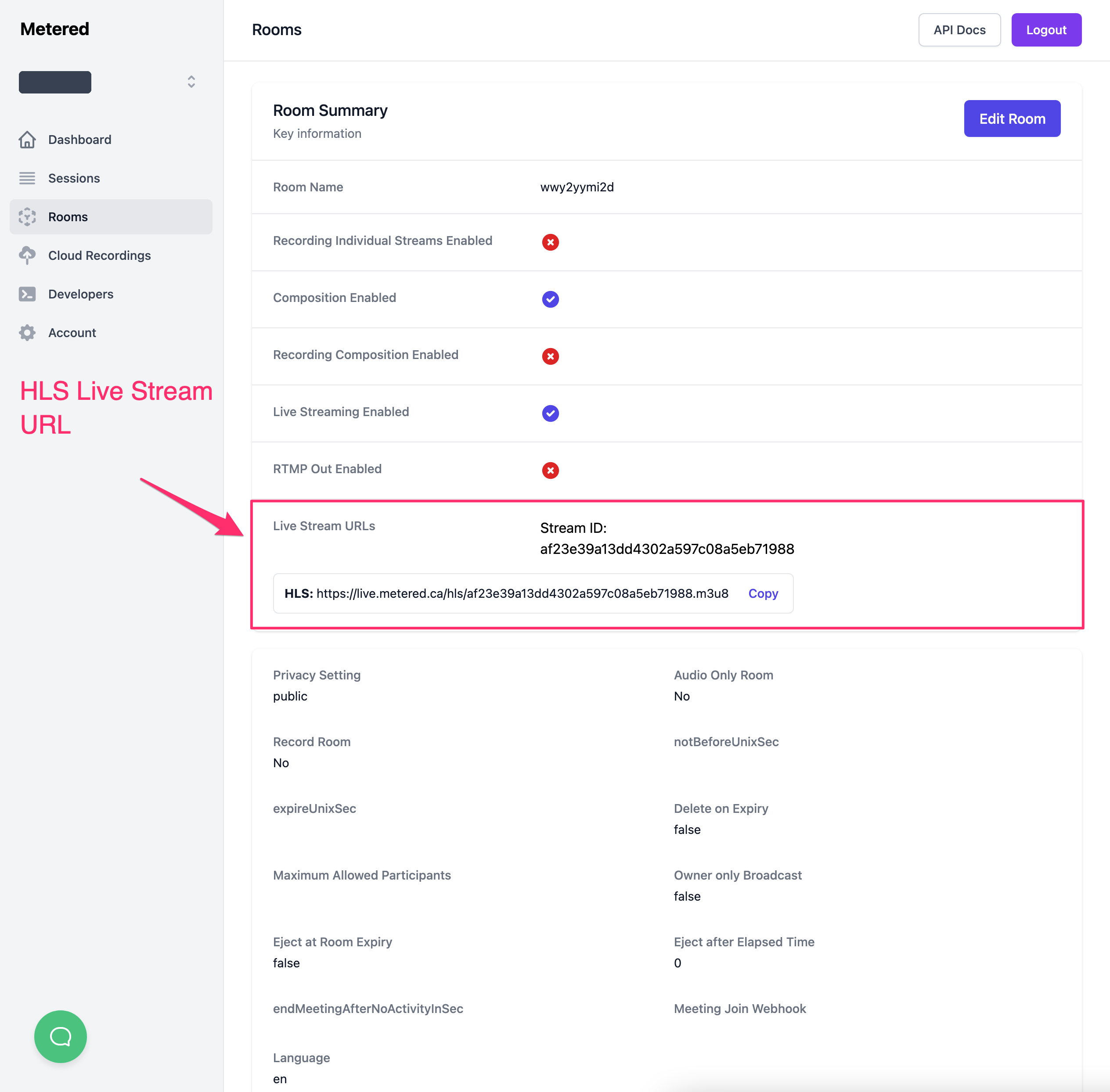
Learn more about streaming players here