Creating TURN Credentials
There are two ways to create TURN Credentials:
- You can create them using the dashboard
- You can create the TURN Credential using the REST API
With the REST API you can also create TURN Credentials that expire automatically after a fixed duration.
See How to Rotate TURN Credentials for the recommended implementation.
However it is created, a new TURN credential is not usable the moment it appears in the dashboard or in the API response. The credential has to propagate across Metered's global TURN network, which can take up to 2 minutes.
If a client tries to allocate a relay with a brand new credential before propagation has finished, the TURN server can reject the authenticated allocation and no relay candidate is gathered, even though the credential itself is valid. Retrying a short while later succeeds.
Create credentials ahead of time from your back-end instead of at call-setup time, and reuse them across calls.
Creating Credentials from the Dashboard
To create the TURN Credential from the dashboard, log into the Metered Dashboard and then go to the TURN Server page.
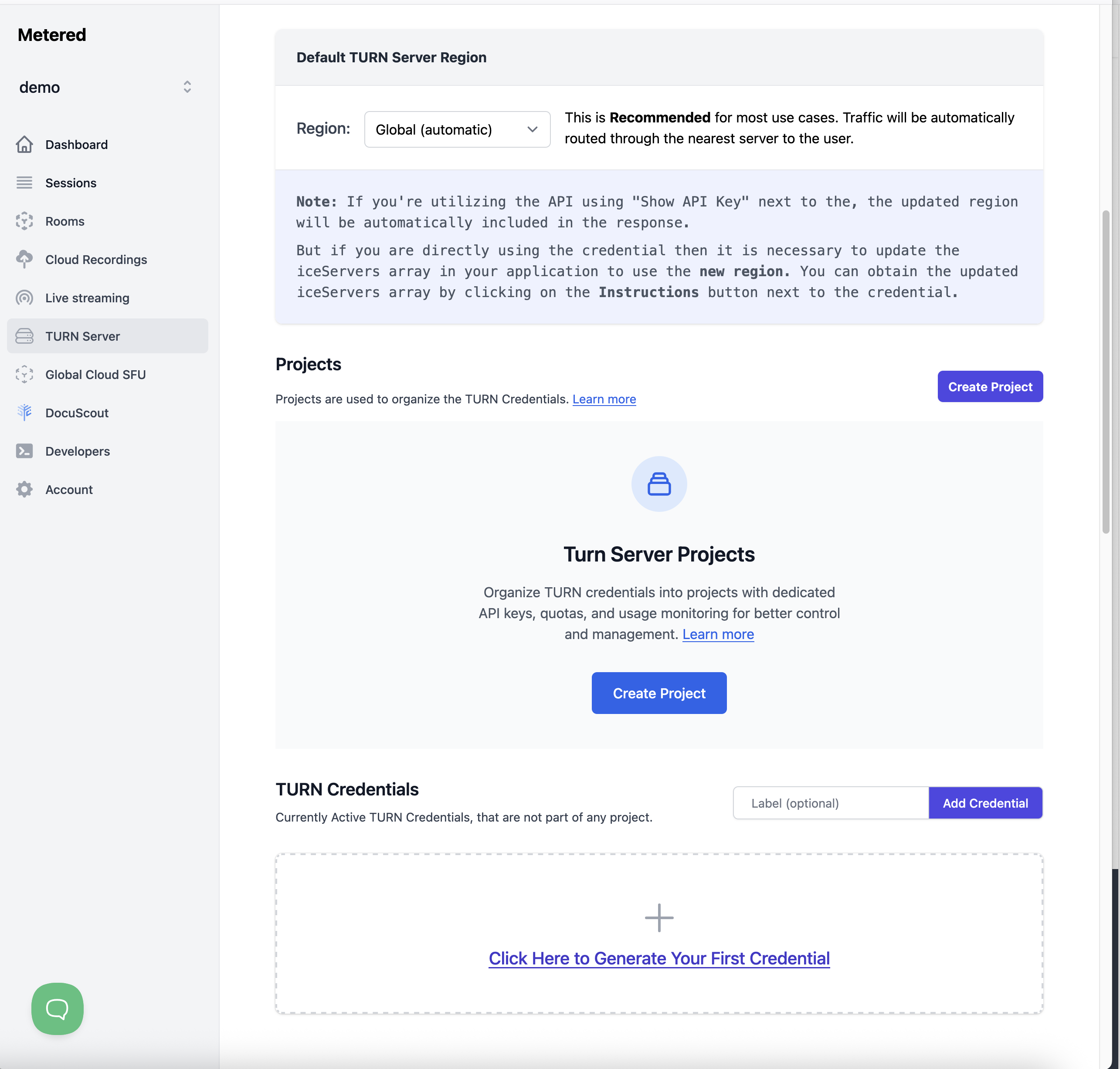
Here on the page click on the "Click Here to Generate Your First Credential" button.
Alternatively you can also click on the "Add Credential" button.
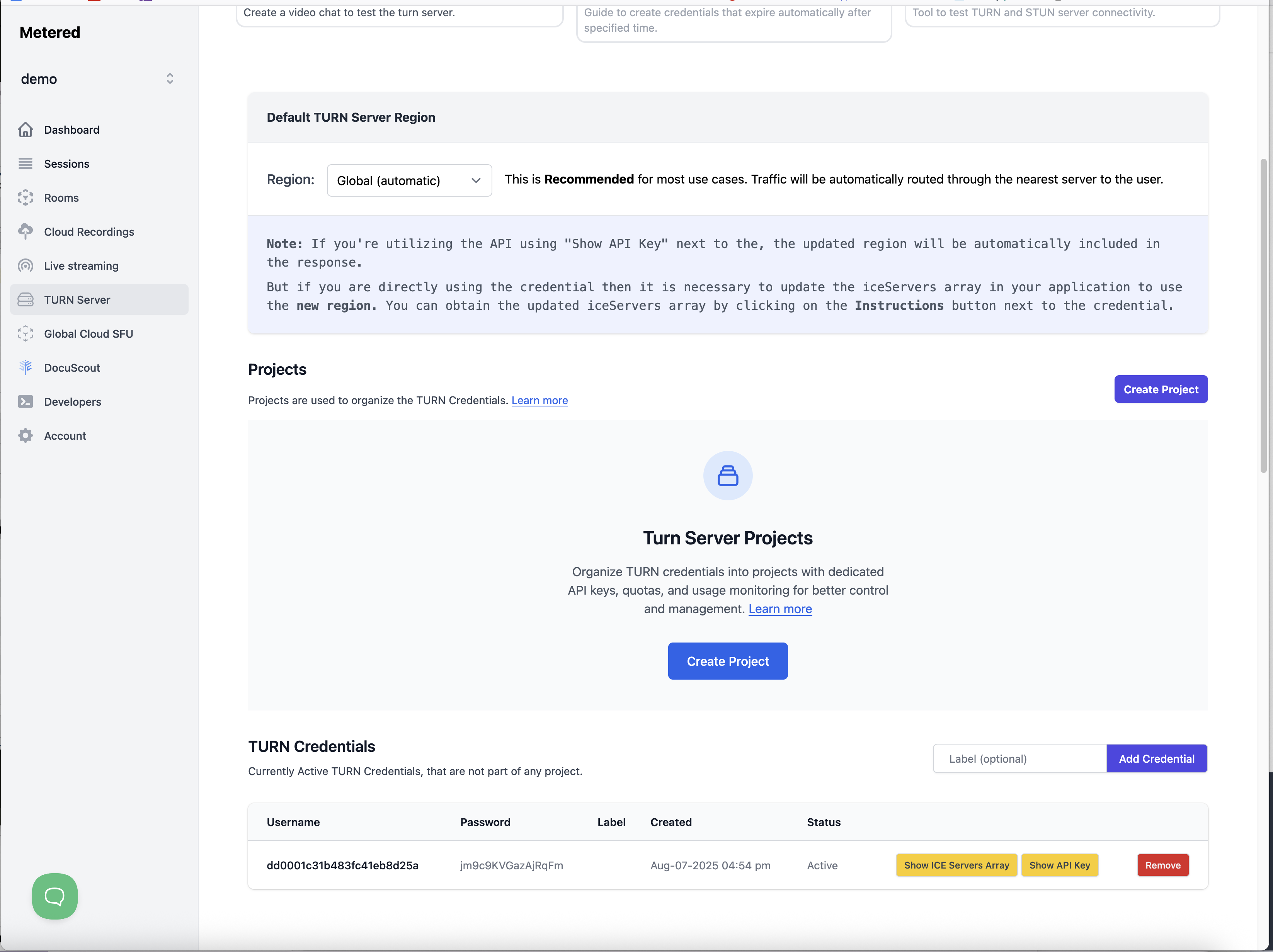
After the credential has been created you can see it on the dashboard.
To use the credential you can click on the "Show ICE Servers Array" button, and it will show the ICE Servers Array that you can use in your application.
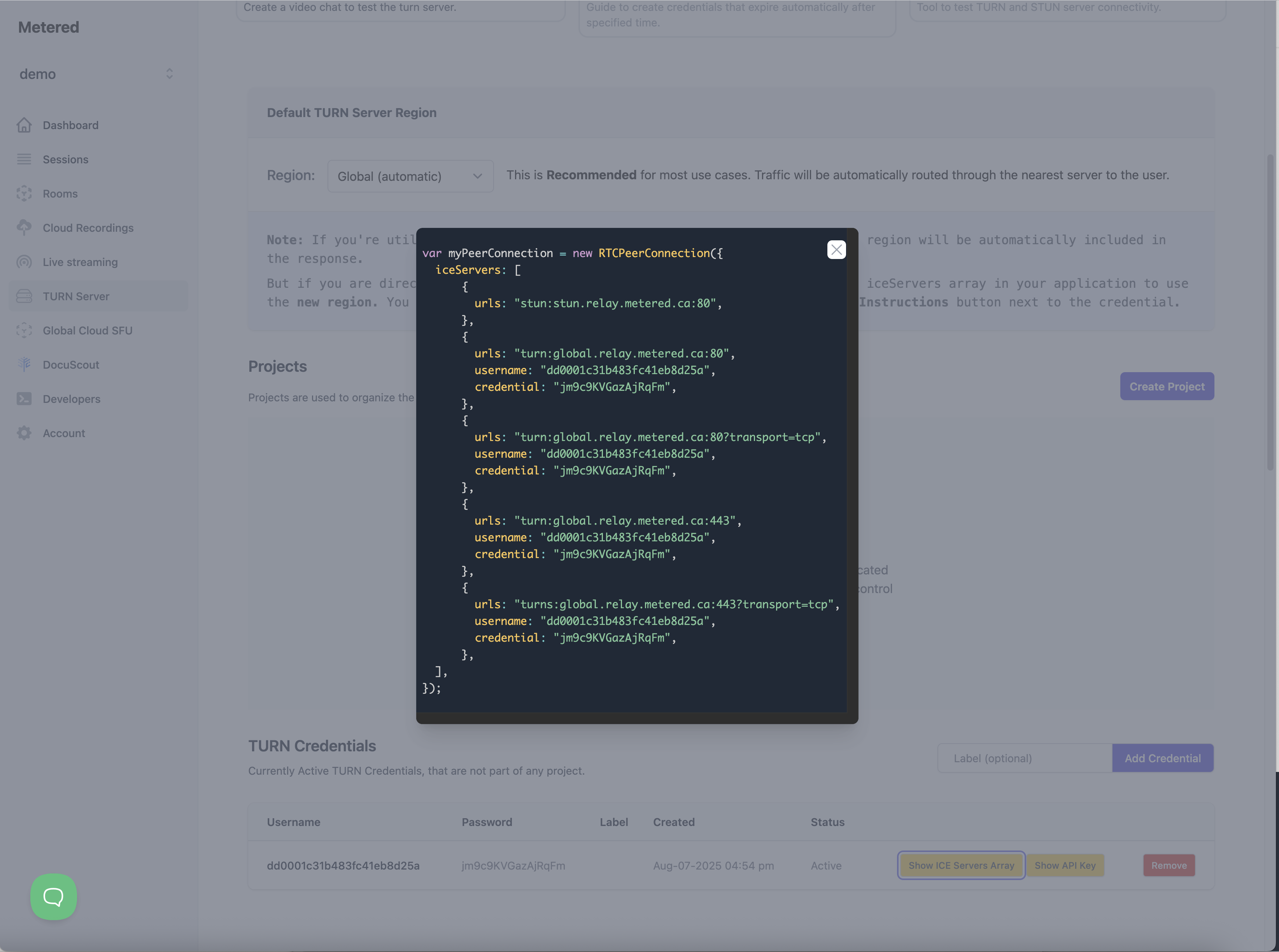
That's it!
Creating Credentials using the REST API
To create the credential using the REST API, we will call the Create TURN Credential API
To use this API go to the developers page, from here copy the Metered Domain and the Metered Secret Key
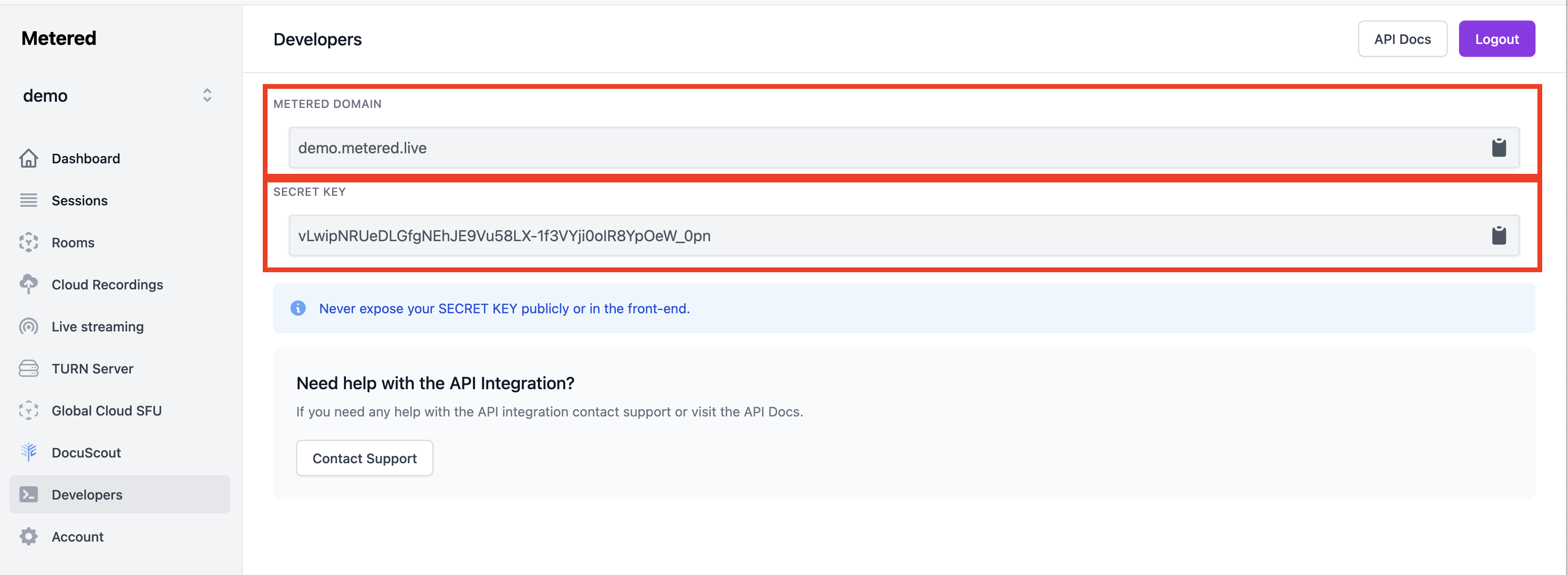
curl -X POST "https://<appname>.metered.live/api/v1/turn/credential?secretKey=<YOUR_SECRET_KEY>" \
    -H "Content-Type: application/json" \
    -d '{
        "label": "exampleLabel"
    }'
Replace <appname> with your appname, and in our case it is demo and the secretKey with your secretKey example:
curl -X POST "https://demo.metered.live/api/v1/turn/credential?secretKey=vLwipNRUeDLGfgNEhJE9Vu58LX-1f3VYji0oIR8YpOeW_0pn" \
    -H "Content-Type: application/json" \
    -d '{
        "label": "created-via-api"
    }'
You will get the following response:
{
    "username": "a5c3184b4a4836923cf6bd96",
    "password": "mcOUQqUdXie7PTd1",
    "apiKey": "a57a9a52a4a56f5daffb86a0b6179e00e624"
}
Now to use this credential you can use the following ice servers array, and replace the username with the username you have obtained in the response and the credential with the password you have received in the response
var myPeerConnection = new RTCPeerConnection({
  iceServers: [
      {
        urls: "stun:stun.relay.metered.ca:80",
      },
      {
        urls: "turn:global.relay.metered.ca:80",
        username: "",
        credential: "",
      },
      {
        urls: "turn:global.relay.metered.ca:80?transport=tcp",
        username: "",
        credential: "",
      },
      {
        urls: "turn:global.relay.metered.ca:443",
        username: "",
        credential: "",
      },
      {
        urls: "turns:global.relay.metered.ca:443?transport=tcp",
        username: "",
        credential: "",
      },
  ],
});
Example:
var myPeerConnection = new RTCPeerConnection({
    iceServers: [
            {
                urls: "stun:stun.relay.metered.ca:80",
            },
            {
                urls: "turn:global.relay.metered.ca:80",
                username: "a5c3184b4a4836923cf6bd96",
                credential: "mcOUQqUdXie7PTd1",
            },
            {
                urls: "turn:global.relay.metered.ca:80?transport=tcp",
                username: "a5c3184b4a4836923cf6bd96",
                credential: "mcOUQqUdXie7PTd1",
            },
            {
                urls: "turn:global.relay.metered.ca:443",
                username: "a5c3184b4a4836923cf6bd96",
                credential: "mcOUQqUdXie7PTd1",
            },
            {
                urls: "turns:global.relay.metered.ca:443?transport=tcp",
                username: "a5c3184b4a4836923cf6bd96",
                credential: "mcOUQqUdXie7PTd1",
            },
    ],
});
OR you can call the Get Credential API and pass the API Key you got from the response and it will return you the ICE Servers array.
It will also comply with what you have selected in the dashboard, so in the dashboard if you have selected "Global" then it will return the Global ICE Servers array, and if you have specified a region, it will return the ICE Servers array containing the domain for that specific region.
You can also obtain the ICE Servers array for any region by specifying the region as a query parameter, you can read more about it here: Pin TURN Traffic To Specific Region
This API will return you the ICE Servers Array, and you can call it from the front-end of your application unlike the Secret Key which should not be exposed on the front-end.
The API Key is unique for each TURN Credential and when the TURN Credential is expired or removed the API Key is also removed.